How to Share an Album on iPhone
Use a Shared Album for a selected collection of family pictures. Before sending an invitation, check your iOS version and decide who should be able to view, contribute and manage the album. Apple changed these controls in iOS 27, so older instructions may describe a different screen.
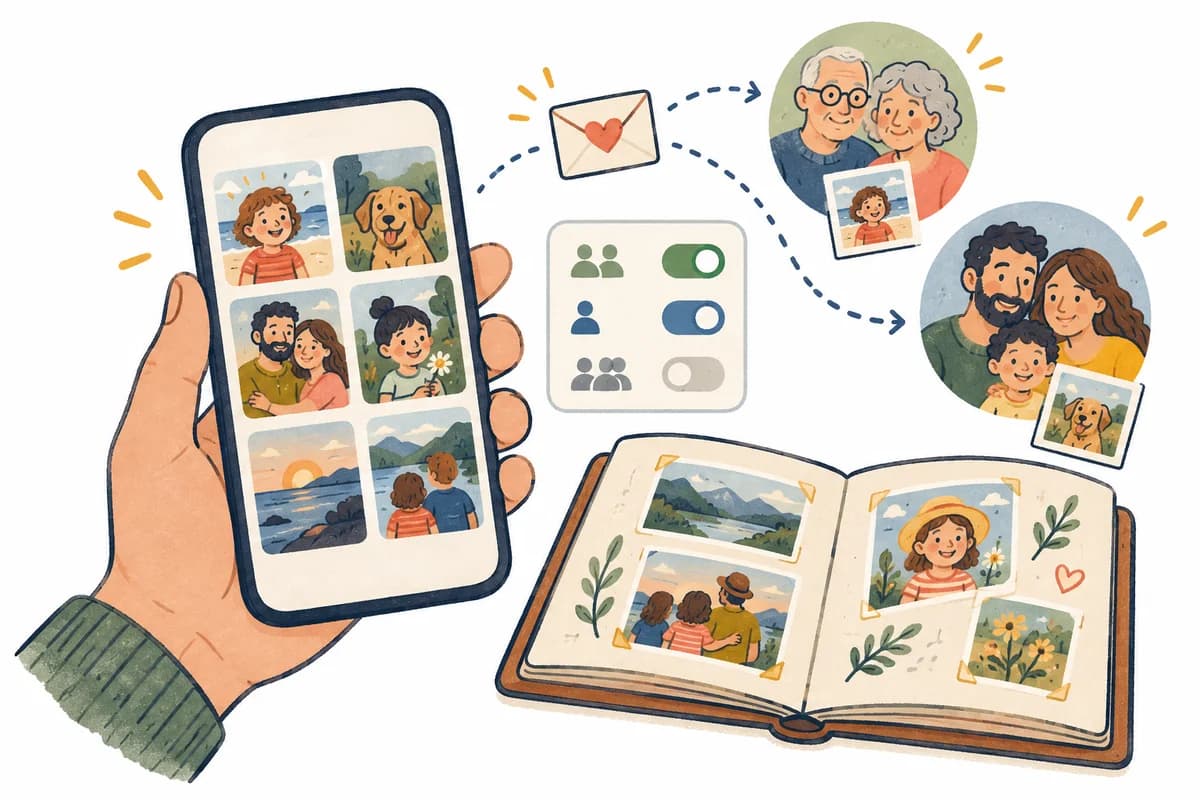
First, choose Shared Album or Shared Photo Library
For a weekend, a birthday or a collection of baby updates, start with a Shared Album. It gives the collection a clear boundary: these are the pictures you are choosing to share. Name it for the purpose, such as “October family photos,” so relatives know what belongs there.
Apple’s iCloud Shared Photo Library is a different feature. It supports you and up to five other people, lets participants add, edit and delete content, and uses the organizer’s iCloud storage. Contributed items move from the Personal Library to that Shared Library. Do not enable it just because you wanted to send someone a small album. Read Apple’s Shared Library explanation if that broader collaboration is your goal.
Create a shared album on iOS 27
- Open Settings, tap your name, then iCloud → Photos. Enable Shared Albums. Apple’s current setup guidance also requires iCloud Photos for regular iOS 27 albums; temporary albums are an exception.
- In Photos, open Collections → Shared Albums and tap Add. Name the collection and select its starting pictures.
- Open Sharing Options. Choose People You Choose for invitations or approval, or Anyone with the Link for link-based access.
- Decide whether to make the album temporary. Otherwise, leave that option off. Finish with Done.
The audience and expiry choices are documented in Apple’s iOS 27 album guide. A temporary album expires after 30 days. For a long-running family collection, make that an intentional choice rather than a setting someone discovers later.
Invite family and choose what they can do
Open the new album, tap Manage Shared Album, then Invite Participants. Send the invitation through your chosen method. For a first test, send it directly to one intended relative instead of dropping it into a large chat. Apple’s invitation instructions show the current control.
iOS 27 participant permissions
| Permission | What it allows | When to consider it |
|---|---|---|
| Can View and Comment | View the album and leave comments. | Relatives who want to follow your updates. |
| Can Add Photos | Contribute pictures and remove their own contributions. | People helping collect photos from the same event. |
| Can Manage Album and Photos | Manage participants and permissions, rename the album, and delete others’ contributions. | A trusted co-organizer, after agreeing on responsibilities. |
To change a role, open Manage Shared Album, select the participant and choose the permission. Apple describes these options in its participant-permissions guide. Give someone management access because you want them to help run the album, not merely because they need to upload a picture.
If the album owner is using iOS 26
- Turn on Shared Albums under Settings → your name → iCloud → Photos.
- In Photos, open Collections and find Shared Albums. Depending on the interface, this can appear under Albums → Shared. Tap Add.
- Name the album, select pictures and add the recipients using their contact information associated with their Apple Account.
- Finish with Create. Ask one person to accept the invitation before adding a larger collection.
These steps follow Apple’s iOS 26 instructions. The older interface uses Add Participants and an album-wide Participants Can Add Photos control, rather than the iOS 27 permission choices above. Use the instructions for the version that created the album.
Can Android relatives join? Check which album you created
For albums created on iOS 27 or later, Apple now supports joining and contributing on the web, including without an Apple device or Apple Account. The owner’s sharing choices still determine access. Older Apple devices may need an update or browser access. See Apple’s current cross-device guidance.
For an album created on iOS 26 or earlier, the older Public Website option provides browser viewing. Anyone with that website URL can view it. Do not treat that older viewing link as the same thing as the newer collaborative invitation. Apple documents the legacy flow in its iOS 26 sharing controls.
Before choosing a service for a mixed-phone family, try the actual invitation on the relative’s normal device. Agree on whether they need to see updates, upload pictures, or help manage the collection. Those are different jobs, and a successful viewing test does not check all three.
Add pictures from an album you already organized
Create the Shared Album first. Then open the existing collection, select the pictures you want, tap Share → Add to Shared Album and choose the shared destination. Finish with Done on iOS 27, or Post in the older flow. Apple’s adding-photos instructions explain the distinction.
Start with a short selection that tells the story. A few recognizable moments are easier for relatives to catch up on than hundreds of near-identical shots. Keep private documents, addresses and pictures you would not want copied out of the shared collection.
Check the invitation before you share more
- Ask one relative to open the invitation. For a current album, they should follow Join and any access-request prompts. For an iOS 26 invitation, they can accept the Photos notification.
- Confirm the intended person can open the sample pictures. If they should contribute, ask them to add one ordinary photo.
- Review who has access and which roles you granted. Choose named access or approval when that matches your intended family circle.
- Ask the relative where they will find the album next time. An invitation that works once is less useful if they cannot return to it.
- Keep originals separately and agree before reposting anyone’s pictures outside the album.
If an invite seems missing, check the recipient and the account being used before creating another album. Current Photos versions show pending invitations through Collections and the account profile; the older flow can show album activity. Return to the original invitation and version-specific Apple guide first. For persistent synchronization problems, follow Apple’s support instructions for your software version.
Want a dedicated family feed instead?
If you prefer a separate family-sharing app, try a small Clann group before moving your everyday updates. Download on iPhone or Android and start the trial inside the mobile app. Apple’s built-in album may already meet your needs; choose based on the family workflow and privacy model you want.
What changes when you remove someone or delete the album?
Removing access cannot recall pictures someone already saved or copied. Before deleting an album, keep the items you need and warn anyone contributing to it. Apple confirms that saved library copies remain after shared access ends in its album ownership and removal guidance. For copying limits across services, read our screenshot guide.
Keep the setup understandable for the next person who helps your family. Record which account owns the collection, what the album is for and who may manage it. That small agreement is often more useful than adding another app or creating a second album with the same name.
When Clann is worth paying for
Consider Clann if you want a dedicated family feed and its subscription-funded privacy model. Clann does not sell user data, show ads, or use family photos and videos to train AI. New family groups are end-to-end encrypted by default; the security reference explains scope and limits. That is the reason to evaluate Clann, rather than assuming Apple cannot share with Android.
Family subscriptions fund the service. Clann currently advertises US pricing of $59.99 annually after a seven-day free trial, or $11.99 monthly. Check the localized price and plan in your mobile store before subscribing. The plan explanation gives the current positioning.
For other family setups, see sharing photos across iPhone and Android, creating a Google Photos shared album, and helping grandparents view family pictures.
Questions about sharing an iPhone album
A manually chosen Shared Album is the selected collection you add to it. Review the audience before adding more pictures, and keep the separate Shared Photo Library feature distinct.
Check the iOS version and which version created the album. The iOS 27 sharing and permission controls differ from the iOS 26 flow. An older device can also need browser access for a newer album.
No. In the current permission model, contribution access is separate from management access. Give each person the role that matches what you want them to do.
Try Clann with a small family group