How to Share Photos Between iPhone and Android
One parent has an iPhone, the other has a Samsung, and the grandparents want to see the same photos. Start with one shared album and test it on both phones before moving the whole family. Here are three ways to do that, with the access checks that matter.
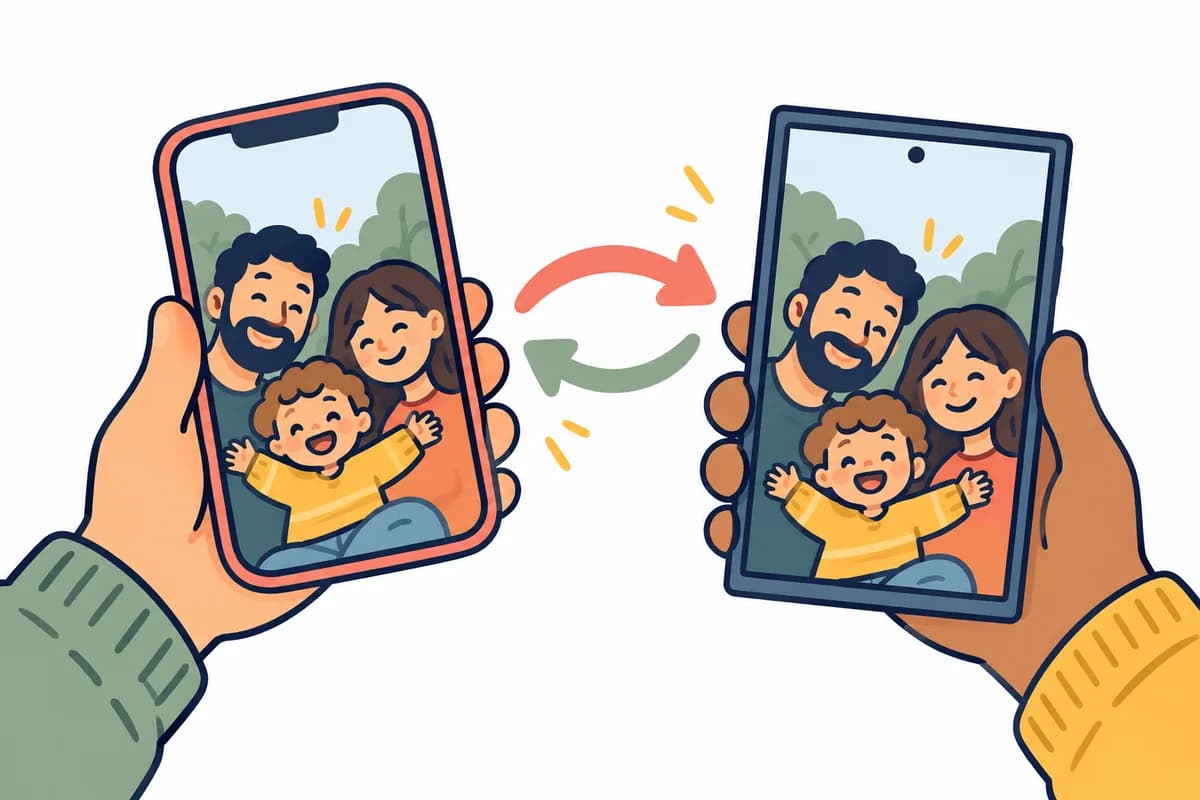
Choose a setup before sending invitations
Three ways to keep a mixed-phone family in one album
| Option | A good starting point when… | Check first |
|---|---|---|
| Clann | You want a dedicated private family space on both mobile platforms. | One family subscription; try one iPhone and one Android before inviting everyone. |
| Google Photos | Your family already uses Google accounts and wants a shared album. | Decide between account invitations and a link that recipients can forward. |
| Apple Shared Albums | The person creating the album prefers Apple Photos. | Confirm the creator’s OS version and test what the Android relative can actually do. |
If you only need to hand over a few pictures once, a permanent family group may be more than you need. For a growing collection of birthdays, visits and everyday photos, agree on one shared destination so neither phone becomes the only place the memories live.
Option 1: Set up private family sharing in Clann
Use the mobile app to create and manage your family group. Both iPhone and Android relatives can join the same group. Start with a small test rather than uploading your whole camera roll.
- Install Clann on both phones. Use the App Store on the iPhone and Google Play on the Android. Choose one person to create the family group.
- Create the group and invite one relative. Share the invitation with the person on the other phone. Ask them to confirm they are in the intended group.
- Post one photo from each phone. On the timeline, open the camera menu and choose Gallery to select an existing photo. Confirm both people can see both uploads.
- Check what relatives may save. Review Photo downloads in Group admin before sharing sensitive pictures. Agree whether family members may repost photos elsewhere.
- Invite the rest of the family. Once the two-phone test works, use the same group for everyone. If a relative only wants to look, Clann also supports browser viewing after an admin approves their browser.
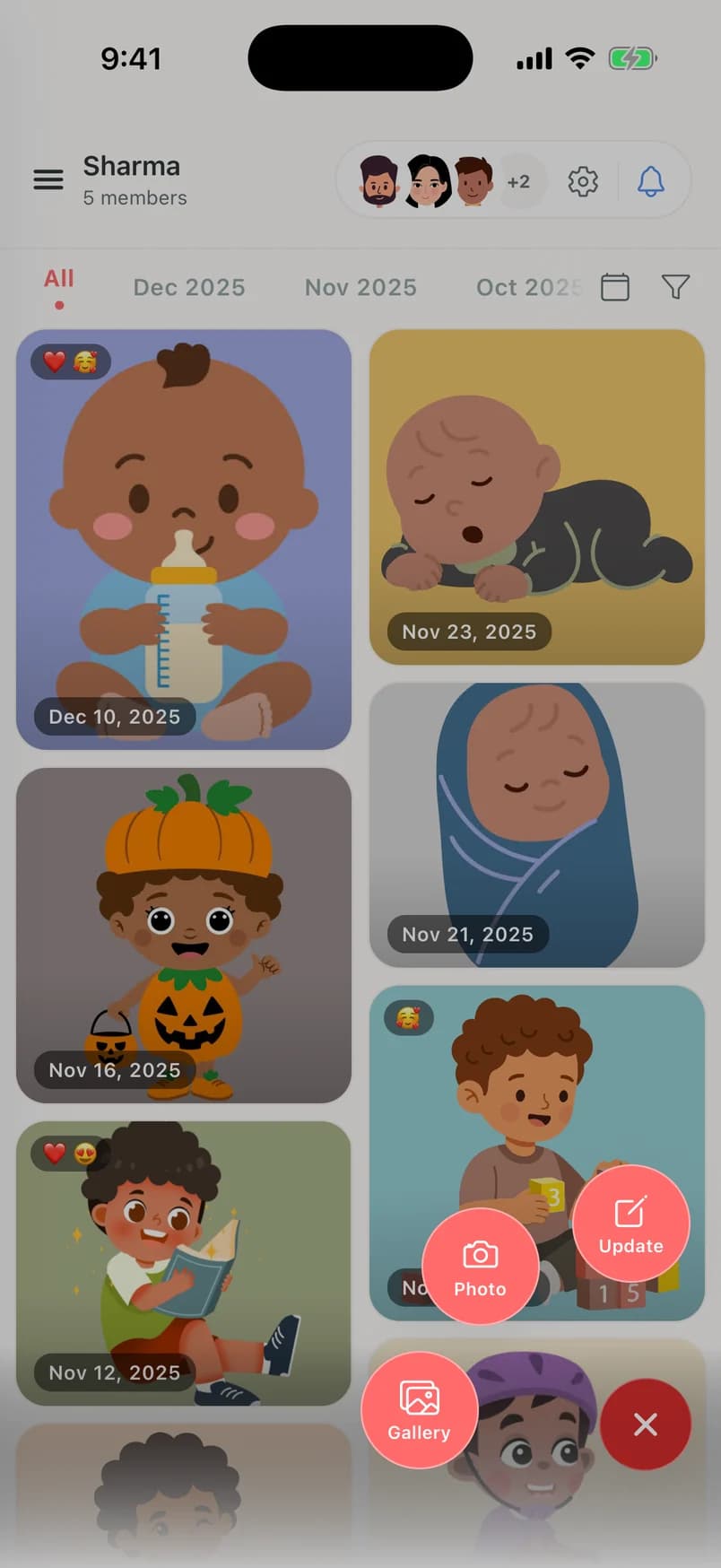
New family groups have end-to-end encryption on by default. Older groups have a separate upgrade path, so check the group rather than assuming every existing album has the same settings. An approved person can still photograph a screen; encryption does not replace a family agreement. Read how Clann protects family content for the details.
Why Clann is paid
Family subscriptions fund private sharing. Clann does not sell user data, show ads or use family photos and videos to train AI. One subscription covers the family members you invite.
The US annual plan is $59.99 after a 7-day free trial; the monthly plan is $11.99. Prices vary by country and store. Download the app to review the terms and start a trial on your phone.
Option 2: Make a shared album in Google Photos
Google Photos supports sharing across the two platforms. Create an album, add a few pictures and invite the intended relatives. You can use their Google accounts or create a shareable link. Google’s iPhone instructions cover album creation and sharing.
- Make an album with a small test set. Give it a clear name so relatives can distinguish it from their personal photo libraries.
- Choose the audience. Invite the intended Google accounts, or use a link when that better suits the family. Tell recipients which album they are joining.
- Test contribution from both phones. Ask the Android relative and the iPhone relative to add a photo. Check collaboration settings if someone can view but cannot contribute.
- Review access when the audience changes. A forwarded link can reach someone you did not personally invite. Check link sharing as well as the member list when removing access.
Google documents the difference between specific-person sharing and link sharing. Removing a person does not block access through an active shared link. Choose the setting deliberately when the album contains pictures you only want close relatives to see.
Option 3: Check Apple Shared Albums by OS version
Do not assume an Android relative is always limited to viewing. Apple’s current Shared Albums instructions describe web contributions without an Apple Account or Apple device starting in iOS 27, alongside new sharing controls. Older instructions and older devices can behave differently. Ask the album creator to check their version, then test the invitation on the Android phone before choosing this route.
Use two harmless test pictures: one from the creator’s iPhone and one the Android relative tries to add. Confirm both appear in the same album. If the Android person can only view, return to the creator’s sharing controls and version requirements; do not assume the invite itself has failed.
A five-minute test before moving the family
- Access: Can each relative open the album on the device they actually use?
- Contribution: Can both phone users add a photo, rather than one person only receiving them?
- Video: Does a short test video play on both phones? Try the format you normally record.
- Quality: If prints matter, check the downloaded file’s dimensions and appearance. Keep your original files until you have tested the result.
- Privacy: Who can open a forwarded invitation or link, and what happens when you remove someone?
If a relative cannot see the photos
First check that you are looking at the same group or album. Then check whether the upload finished, whether the photo app has permission to access the selected pictures, and whether the recipient accepted the intended invitation. Test one new photo before changing several settings at once.
If one relative finds the app difficult, try the viewing option that matches their device and confidence. Our guide to sharing photos with grandparents covers that decision in more detail. Keep a separate backup of irreplaceable photos rather than treating any shared album as your only copy.
Questions about sharing across phones
Yes. Choose a service that accepts contributions from both phones, then test an upload from each device. Clann has apps on both platforms; Google Photos also supports shared albums across them. Apple’s web contribution features depend on the creator’s software version.
No. One family subscription covers the relatives you invite. The person setting up the family can review the plan inside the mobile app.
Yes. A family admin can approve their browser for viewing, including on an end-to-end encrypted family group. This is a viewing option for invited relatives; start the family group in the mobile app.
Do not assume so. Test a download and inspect its dimensions before depending on any sharing method for prints or archiving. Keep the original files and a separate backup.
Bring both phones into one private family group