How to Organize Family Photos (Without Losing Your Mind)
Thousands of photos across phones, iCloud, Google Photos, and dusty hard drives? You're not alone. Here's a realistic step-by-step system that actually works - and how to keep them organized going forward.
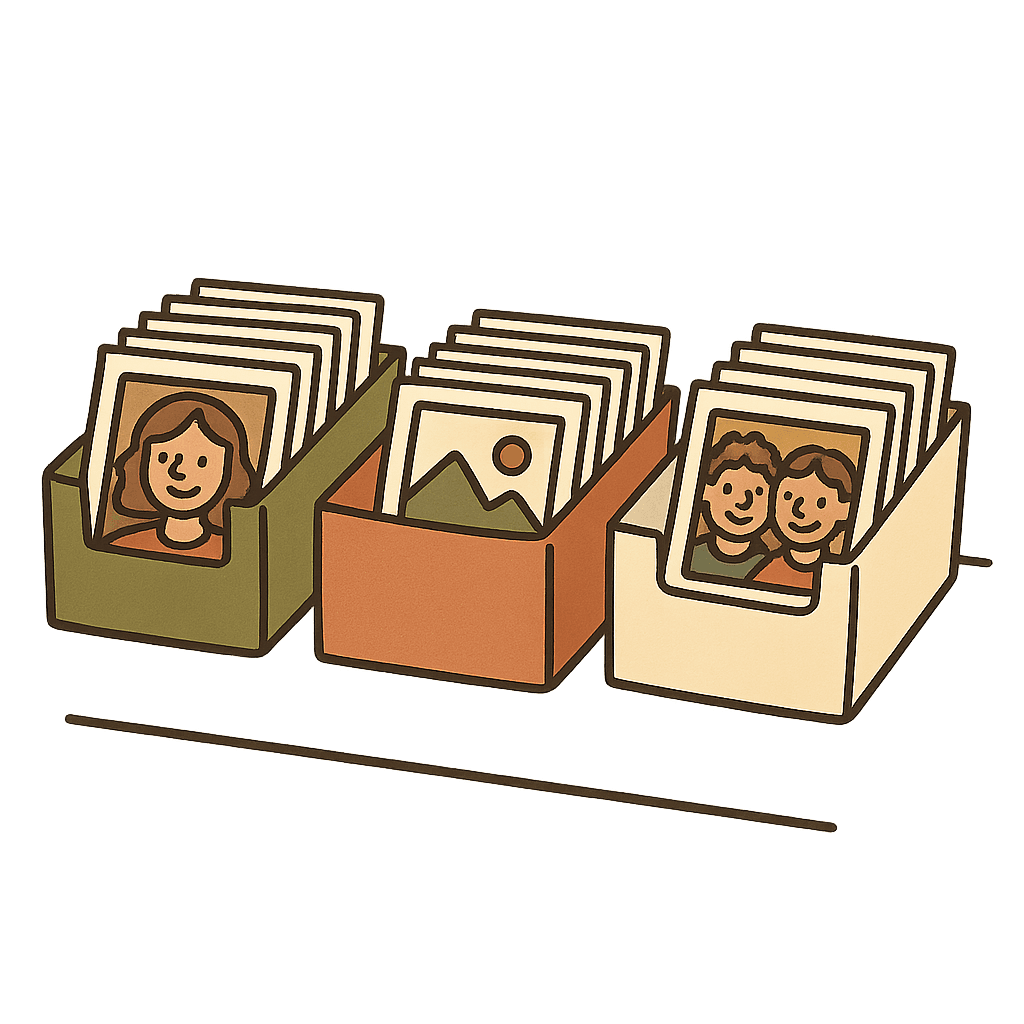
The 6-Step Photo Organization System
- Pick one home for your photos. Stop scattering across five services. Choose one library and consolidate.
- Do a one-time import. Pull in camera rolls, old hard drives, and scanned prints. Don't try to sort as you go.
- Let the app group automatically. Modern photo apps sort by date, location, and faces without you lifting a finger.
- Delete the obvious junk. Duplicates, blurry shots, failed screenshots, burst-mode leftovers. 20-30% of most libraries is deletable.
- Mark favorites, not everything. Don't tag every photo. Mark the 5-10% worth finding again.
- Back up to a second location. One copy is zero copies. A private family app + a cold backup covers you.
Where Should You Organize Them?
Most families default to Google Photos or iCloud. Both work, but both have downsides for family photos: Google Photos scans images for AI training, iCloud doesn't let non-Apple relatives participate, and neither makes sharing with extended family simple.
For family photos specifically, a private family-first app like Clann solves the organization AND sharing problem at once - auto-grouping by date, people, events, and locations, with invite-only access for the people who matter.
Mistakes That Waste Hours
- Trying to tag every photo manually - you'll give up by week two
- Building deep folder hierarchies - search beats folders every time
- Keeping duplicates "just in case" - they make everything else slower
- Starting with photos from 2011 - start with this month, work backwards
- Organizing alone - get family to contribute to a shared library instead
How Clann Keeps Family Photos Organized Automatically
- Auto-grouped by date, person, place, event - nothing to tag manually
- Memory books from photos you choose - turn favorites into an album in minutes
- Family contributes to one shared library - grandparents' photos show up too
- Favorites - the highlights surface to the top
- Private by default - no AI training, no ads, no data selling
Frequently Asked Questions: Organizing Family Photos
The best system is: (1) Pick one central location (don't scatter across services), (2) Use a private family-photo app that auto-sorts by date, people, and events, (3) Delete duplicates and blurry shots as you go, (4) Tag faces and locations once so future search works, (5) Back up to a second location. Clann handles steps 1-4 automatically and keeps everything private.
Work in monthly chunks, not years. Import one month at a time: delete obvious duplicates, mark favorites, and let the app group by date automatically. Don't try to tag every photo - focus on the ones worth finding again. In Clann, you can then turn the best of each month into a memory book whenever you're ready.
Both. Date-based organization happens automatically (every app sorts by timestamp). Event-based organization - birthdays, holidays, trips - is what you'll actually search for later. Clann's event search combines both: you can find "Christmas 2023" or "Emma's first birthday" without manually building albums.
On iPhone, use the built-in Duplicates album (Photos > Utilities > Duplicates). On Android, Google Photos flags duplicates in Library > Utilities. For older backups, tools like Gemini Photos work well. Delete burst-mode extras, screenshots you no longer need, and blurry shots in the same pass - they clutter search results later.
Export to a private family photo app like Clann where only invited family can see them. Organized photos are only useful if the right people can find them - Clann gives grandparents web access (no app needed), lets you build memory books from the photos you choose, and keeps everything searchable by person, place, and date.
Scan them in batches (a flatbed scanner or PhotoScan by Google works well), then upload to your organized library. Add approximate dates even if they're guesses - the app will still group them chronologically. Mark especially meaningful ones as favorites so they surface in future searches and are easy to pull into memory books.
One Timeline, Organized as It Arrives